
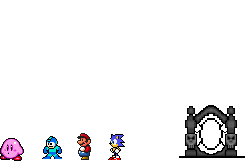
You build your world from inside the game, so you can walk around and test it as you go. Anyone in the world with you sees your changes right away. Every change saves itself, so there's no Save button.
World development takes time and effort, as well as creativity. Get to know your tools before trying to design a level. Realize that you will make mistakes and have to constantly be destroying and replacing objects. Read through this guide carefully and heed all warnings!
- Tab
- hover or test
- WASD
- fly while hovering, Shift for speed
- Arrows
- nudge what is selected, Shift for ten
- P
- place from the palette
- E
- place more of what is under the pointer
- L
- lines: what is stood on
- O
- the whole world and its rooms
- G
- the grid; Shift+G its step
- H
- hide or show what players never see
- [ and ]
- back and forward in its layer
- Delete
- remove
- Ctrl+Z
- undo; Ctrl+Shift+Z redo
- Ctrl+C, X, V
- copy, cut, paste
- Ctrl+D
- duplicate
- Ctrl+A
- everything in the room
- Alt+drag
- move a copy
- Wheel
- zoom
- Esc
- put the tool down, then the menu
You don't have to learn these first: every button shows its key in small letters beside its name.
- How To: Enable Editor Mode
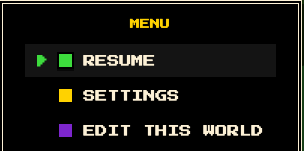
To enable editor mode, type
/editinto your chat box, or press Esc and choose EDIT THIS WORLD. You can use editor mode in your player house and in the worlds you've made. The tools open on both sides of the game, so give it a wide window. Everyone in the world is told when you start.To let a friend edit your house or one of your worlds, stand in it and type
/editor add <name>;/editor remove <name>takes it back, and/editorslists who can. Moderators can edit anywhere.- How To: Turn off Editor Mode
Press EXIT on the bar, or type
/editagain.- How To: Get Around Quickly
Moving around the world you are editing can be a pain. Here's a few ways to make it easier:
- You start out hovering. While you hover you fly with WASD, right through walls, and nothing can hurt you.
- Press O to see the whole world on its map, and double-click anywhere to fly there.
- Travel to any of your worlds by typing
/goand the world's name. - Play through your levels. Press Tab to stop hovering and play as normal; you can still edit while you do. Sometimes the best way to make small improvements to your world is to play through it and watch for annoyances and issues.
- How To: Place Things
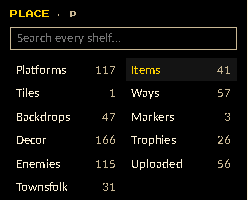
The palette down the left holds everything you can place, on shelves: platforms, backdrops, decor, enemies, items, ways (ladders, teleporters, springs and the like), markers, trophies, the game's characters, tiles and pictures players have uploaded. The search box looks through all of it at once.
Click a picture, then click the world to put it there. Keep clicking to place more, and press Esc when you're done. A box, a trophy or a pickup box lands on whatever is under it.
- How To: Move Objects
Hold your left click down and drag the object to where you want it to be. The arrow keys nudge it a pixel at a time. Shift-click selects more than one, and dragging across empty space selects everything inside the box. Grid and Snap on the bar line things up as you drag. The icons on the inspector's Position row turn a thing a quarter at a time or mirror it. Nothing is ever stretched, so every picture stays pixel perfect.
- How To: Use the Inspector
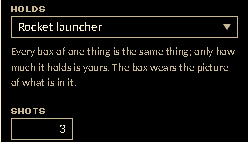
Every object has information it needs to function. For instance, you need to choose a speed for an enemy, and how long it stays dazed after being hit. Select a thing and the panel on the right shows all of it in plain words: what a pickup box holds and how much, where a teleporter leads and which trophies it asks for, what a sign says, the colours. A change is made when you press Enter or click away. With nothing selected, it shows the room you're in.
As you will quickly notice, not all objects let you add text or colour. The inspector only shows what each one has.
- How To: Place Enemies
An enemy is a non player character. It walks back and forth between the two ends of its route, which you can drag, and can fire a weapon if you give it one. In its inspector you choose its behaviour, its speed, what touching it does and how long it stays dazed after being hit.
An enemy with a weapon stands still for a moment before it fires. It serves as a warning to players that the enemy is about to fire. Any enemy can be a boss: give it a name, its hit points (the number of times it must be hit for it to die), and the trophy it drops.
- How To: Draw What Players Stand On
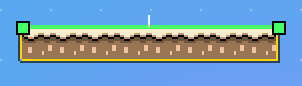
Players stand on lines, not on pictures. Select a thing and press L to see its lines and draw more: click, then click again. Keys 1 to 4 choose the kind of line: one-way (stood on from above), solid, bouncy, or death. Hold Shift for a flat line, an upright one or a 45° slope. Drag an end to move it, or click a line and press Delete. A small tick shows the side that's stood on, and Reverse turns it over. Press Esc when you're done.
Water, elevators, springs, music markers and the no-gun beam work over an area instead: select one and drag the handles round it to shape it.
- How To: Use Elevators, Springs and Music
Elevators can have trophy requirements. Name the trophies in its inspector, and it lifts only a player who owns every one of them. It doesn't use them up. A teleporter can ask for trophies too, but those have to be set down on it, and it uses them up.
Springs are really easy to use. Place one from the Ways shelf and set its Launch in the inspector. A big number bounces people really high and a small one is a little bounce. Anything too high will be silly and annoying probably.
There's an object called the music marker. If you place it in your world (it is an invisible object) and choose a track in its inspector, then that music will play in that area of your world.
- How To: Shape the World and Its Rooms
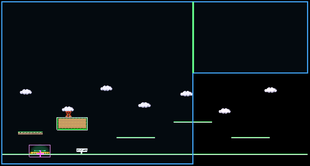
Press O to see the whole world at once in place of the game. A world is made of rooms. The edge two rooms share is green where players can walk through and red where it's a wall, and a click switches it. Here you drag rooms about, pull their handles, add new ones and move the spawn. The world's music and sky are set here too. History lists every saved version, and Revert lets you undo mistakes done to your world. Double-click to fly somewhere, and Esc to go back to the game.
- How To: Use Layers, Copy and Paste
Everything sits on one of five layers, listed at the foot of the palette: Front, Actors, Main, Back and Far. The eye hides a layer from your view and the lock stops it being clicked, which helps when a big backdrop keeps getting in the way. Only you see these settings.
Ctrl+C copies what you've selected and Ctrl+V pastes it under the pointer: click to set it down. It's copied as text, so you can carry a piece of one world into another, and Ctrl+Shift+V pastes it at the same spot it came from. Ctrl+Z undoes anything, one step at a time.
- How To: Paint Tiles
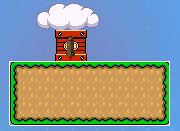
The Tiles shelf holds tilesets: pictures cut into tiles that already know what's solid, so there are no lines to draw. Pick one and the shelf becomes a tile picker. B paints, R drags out a box, F fills and Q erases (the right mouse button erases too). A ground picks its own edges and corners as you paint. X, Y and Z mirror, flip and turn the brush, and E picks a tile up off the world. Maps and tilesets made in Tiled can be dropped onto the editor.
- How To: Upload Custom Made Sprites
You can upload your custom made sprites. First make sure your sprite has transparency instead of a coloured rectangle in its background. That is the most important part. (If it doesn't, the upload window offers to make the background colour see-through.) A sprite can be a PNG, GIF or WebP, up to 2 MB, and you have 100 MB in all. A GIF keeps its animation.
Drop it onto the editor, or press UPLOAD on the Uploaded shelf, and say what it is: a platform, decor, a backdrop, an enemy, a box and so on. An enemy can be uploaded as a sheet, a grid of frames you sort into its walk and its other poses. Once uploaded, the sprite is on the Uploaded shelf for everyone to use. Your name is logged each time you upload a sprite, so do not upload anything inappropriate or obscene.
- How To: Write Behaviours in Lua
Every enemy runs a behaviour: a patrol, a walker, a jumper, a swooper or a sentry. You can write your own in Lua with Write one in Lua in an enemy's inspector. The game asks your script what to do sixty times a second and whenever the enemy is hit, dazed or thrown, and it can walk, jump, fly, fire any weapon, say something and change its own rules. Using Lua shows you how, step by step.











